Otto supports blocking exact URLs rather than the entire domain/website. This feature is available both for Scheduled Blocks and Focus Blocks and Autoblock.
Why would you need this feature?
Previously, blocking a website meant blocking the entire site. For example, if you blocked YouTube, you wouldn’t be able to access any part of it — which wasn’t ideal if you just wanted to play background music.
With this new feature, you can block specific URLs instead. For instance, you can block only the YouTube homepage (youtube.com) while still accessing other parts of the site.
How to block a specific URL?
The instructions here work for both Focus blocks and Scheduled Blocks.
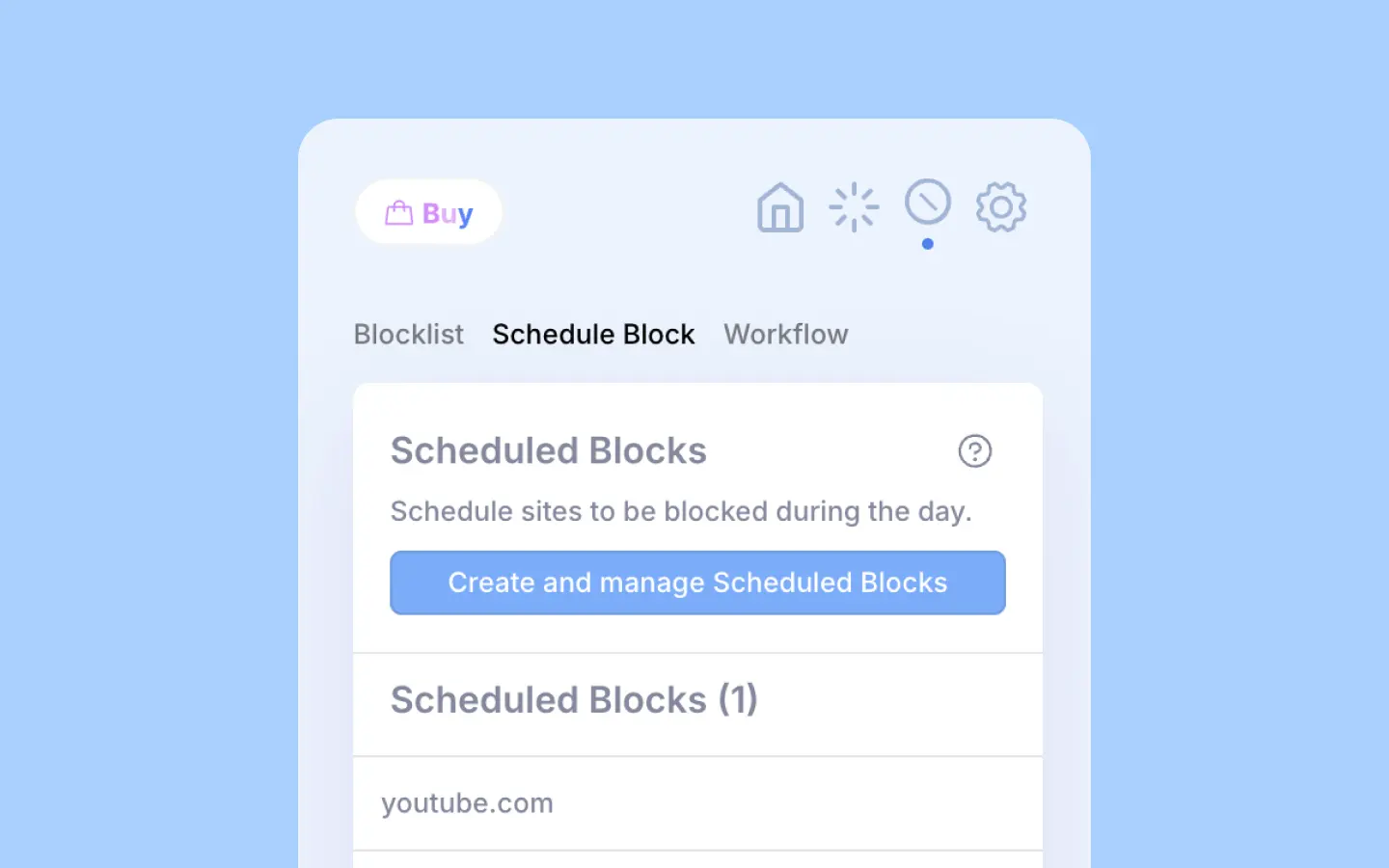
- Open Otto Popup → Click the Block icon (3rd icon in the header) → Go to the Scheduled Block tab → Click Create and Manage …"
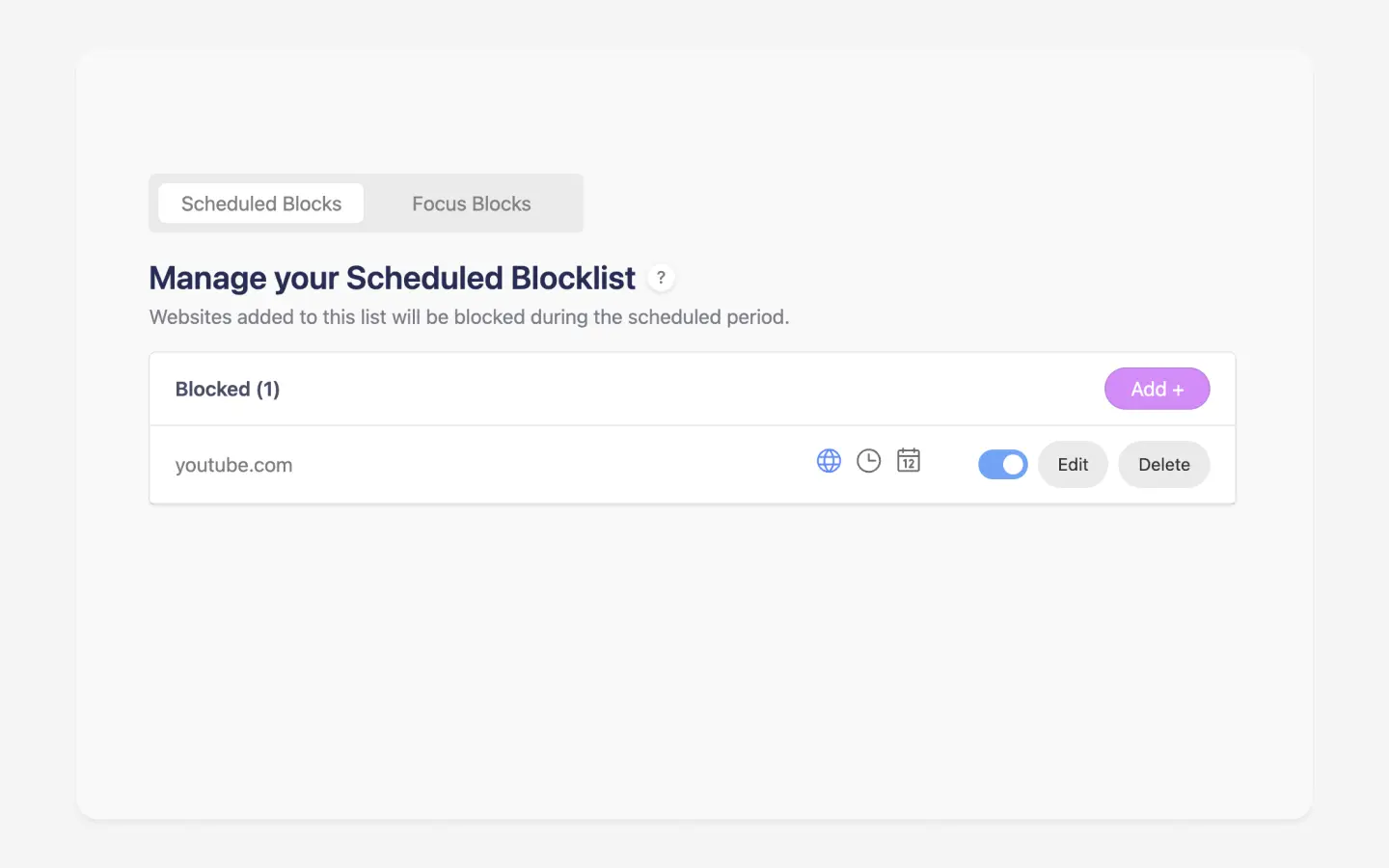
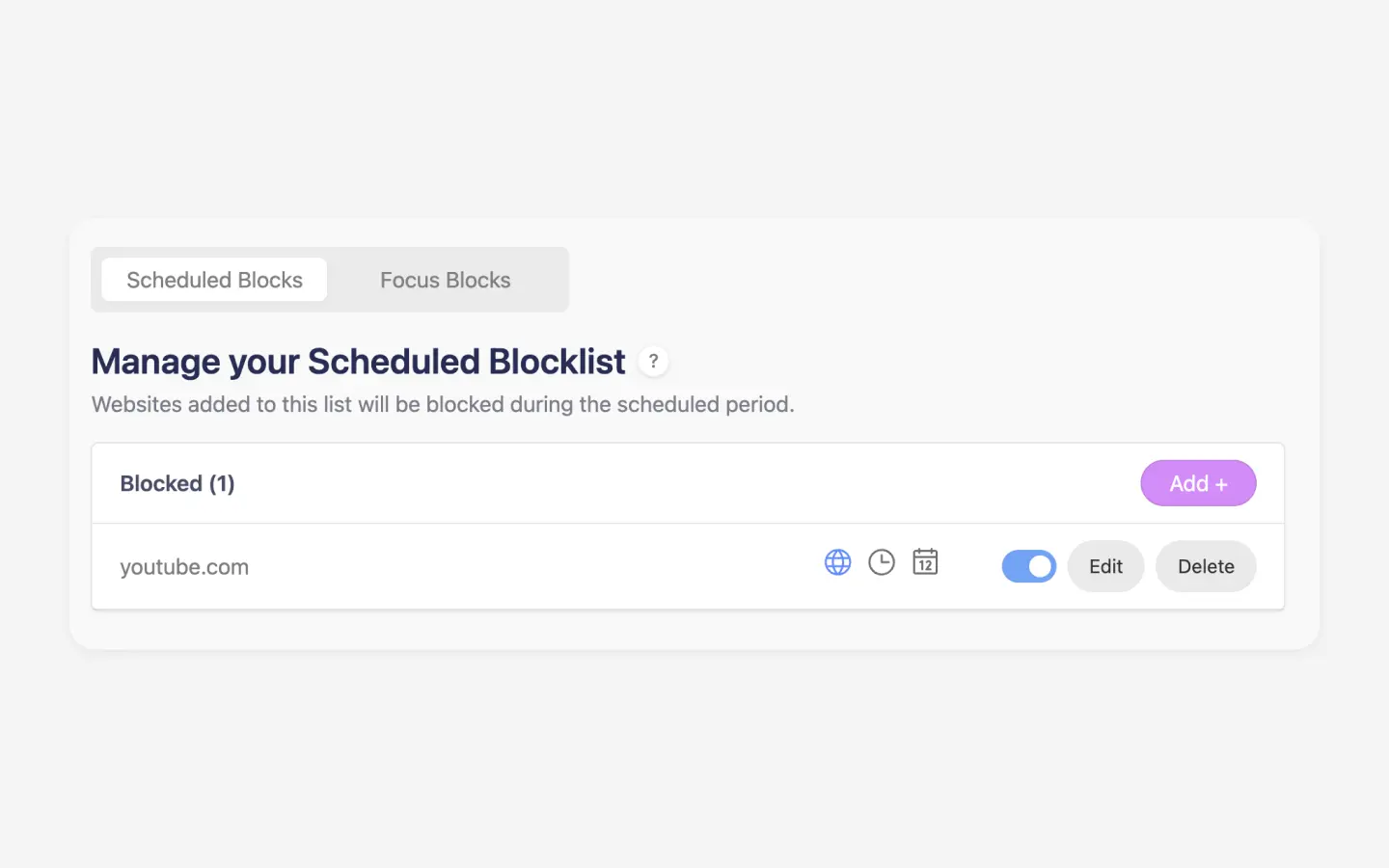
- On the Scheduled Block page, click "Add +" (the pink button), it should open the below dialog box.
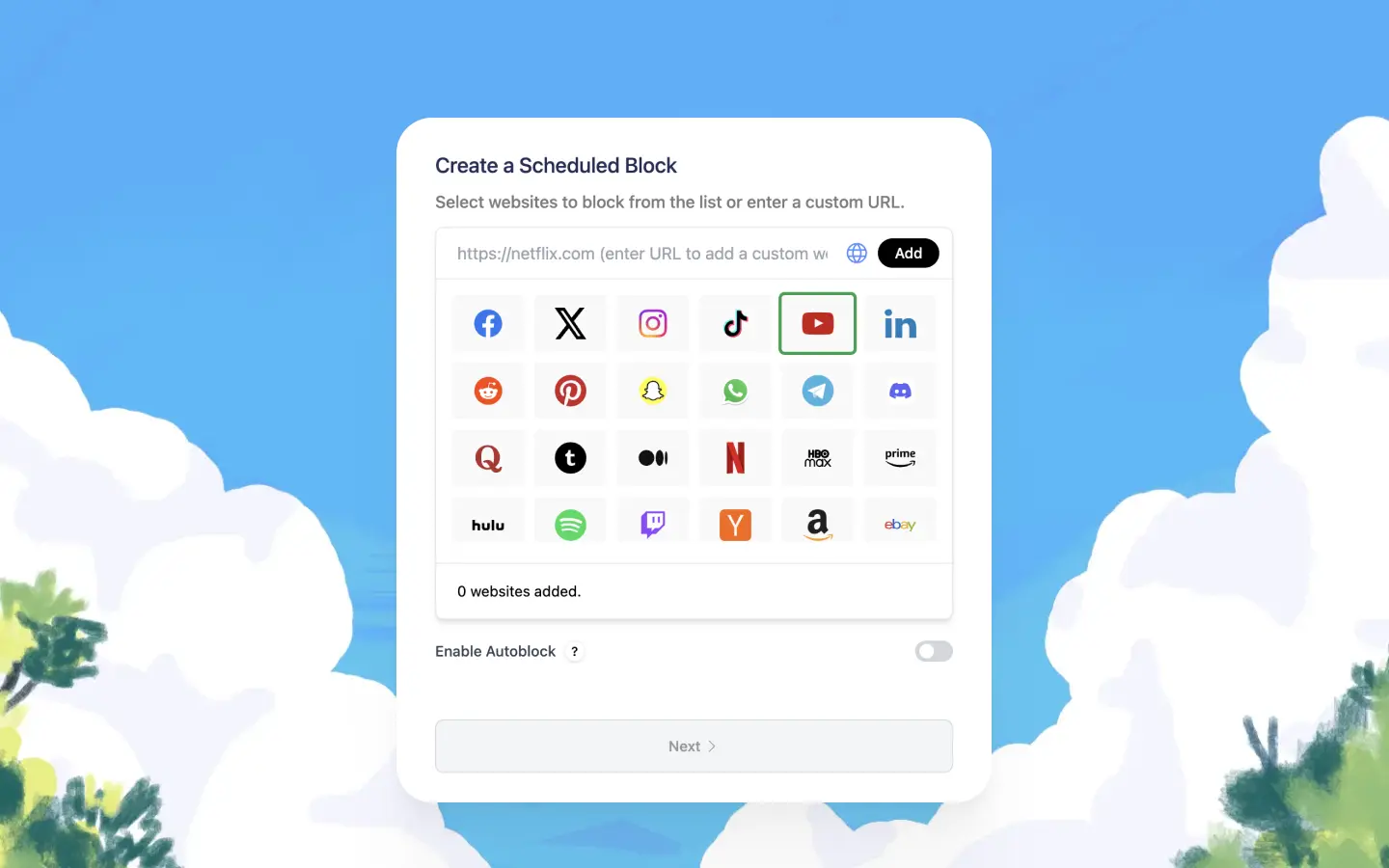
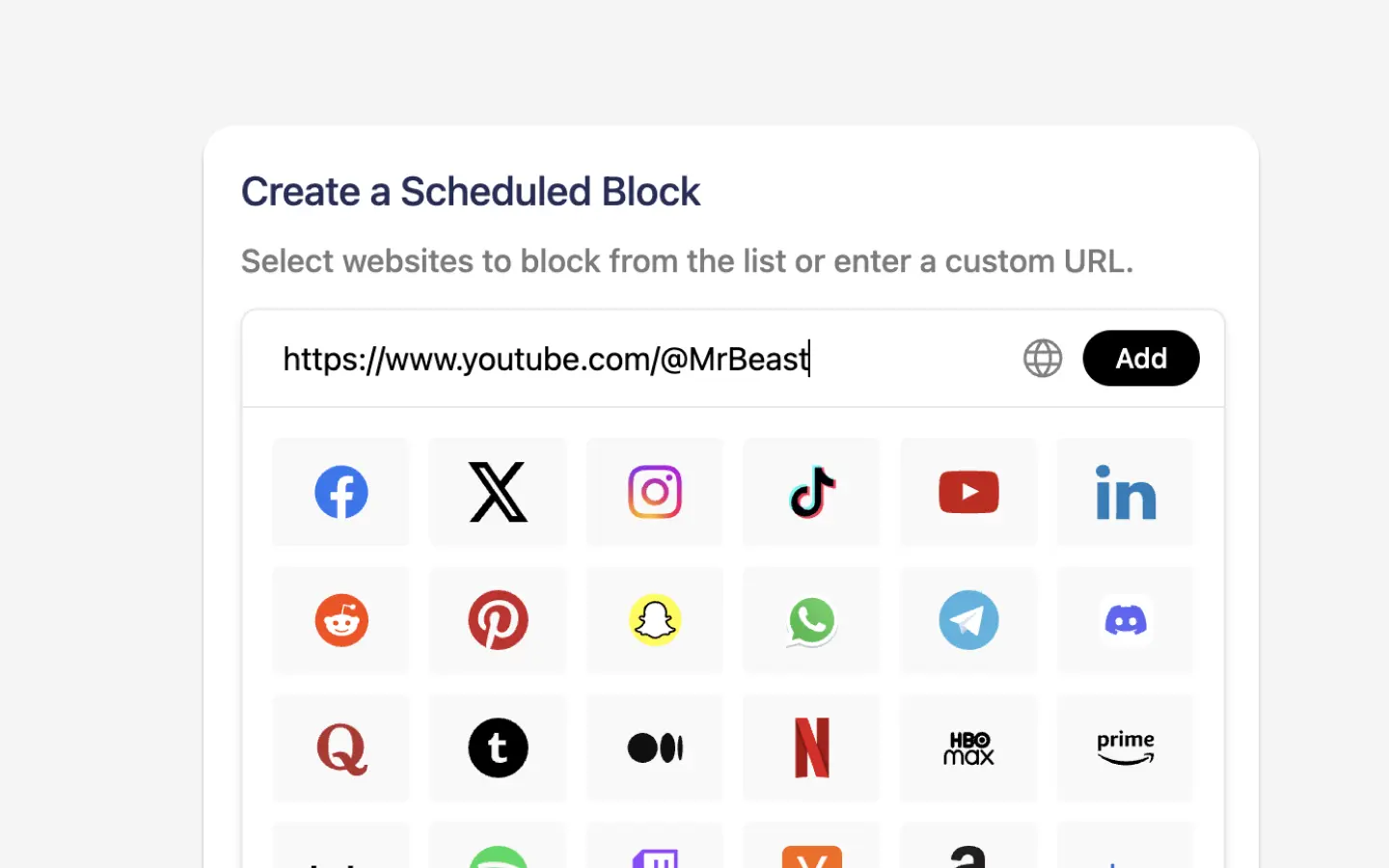
- In the input field, enter the full URL you want to block.
- If it’s an exact page URL, Otto will automatically detect it and block only that specific page.
- The Globe icon will turn gray when only that specific URL is being blocked.
-
Click "add" to add the URL or press enter.
-
Don't forget to save the rule
This works for both focus blocks and scheduled blocks
Converting an Existing Website to Block Only a Specific URL
Say you have youtube.com in the blocklist, and right now it's blocking the entire domain. To only block the youtube.com homepage, follow these steps.
- Check the Globe icon to see whether the entire domain or only a specific URL is being blocked.
-
Click the Edit button next to the entry.
-
In the dialog box, click the Globe icon to toggle between blocking the entire domain or only the specific URL.
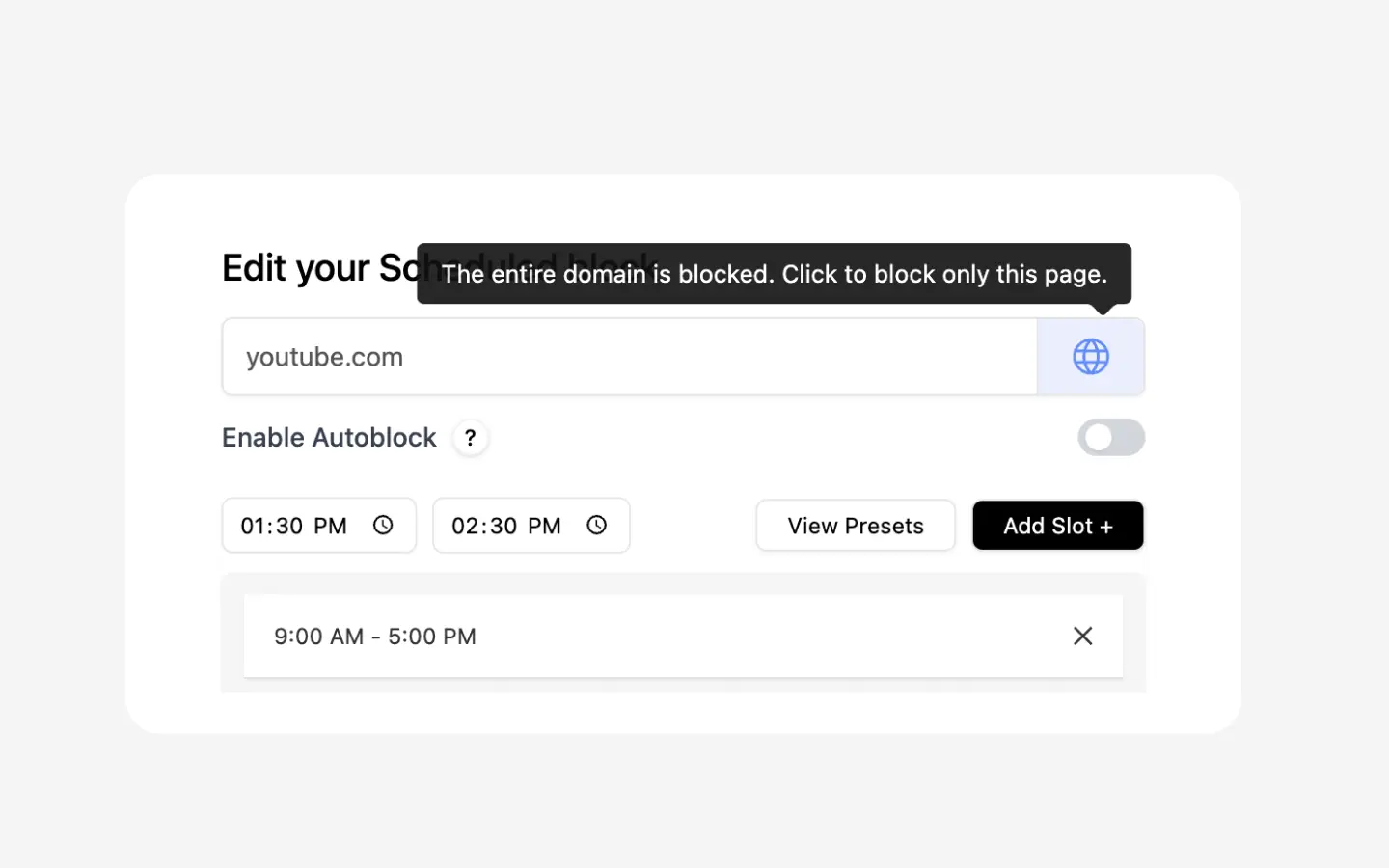
Remember, blue icon means the entire website is blocked. And grey icon means only that specific page is blocked.
- Click "Save" to save the rule.