With Scheduled Blocks, you can set Otto to block websites during specific periods — like work hours or bedtime. This runs automatically in the background and doesn't require the timer to be running. Once set, it keeps running until you change it.
On the free version, you can schedule up to 2 websites to be blocked.

Adding websites to the scheduled blocklist
- Open the Otto Chrome extension
- Click the Otto extension icon to open the main menu.
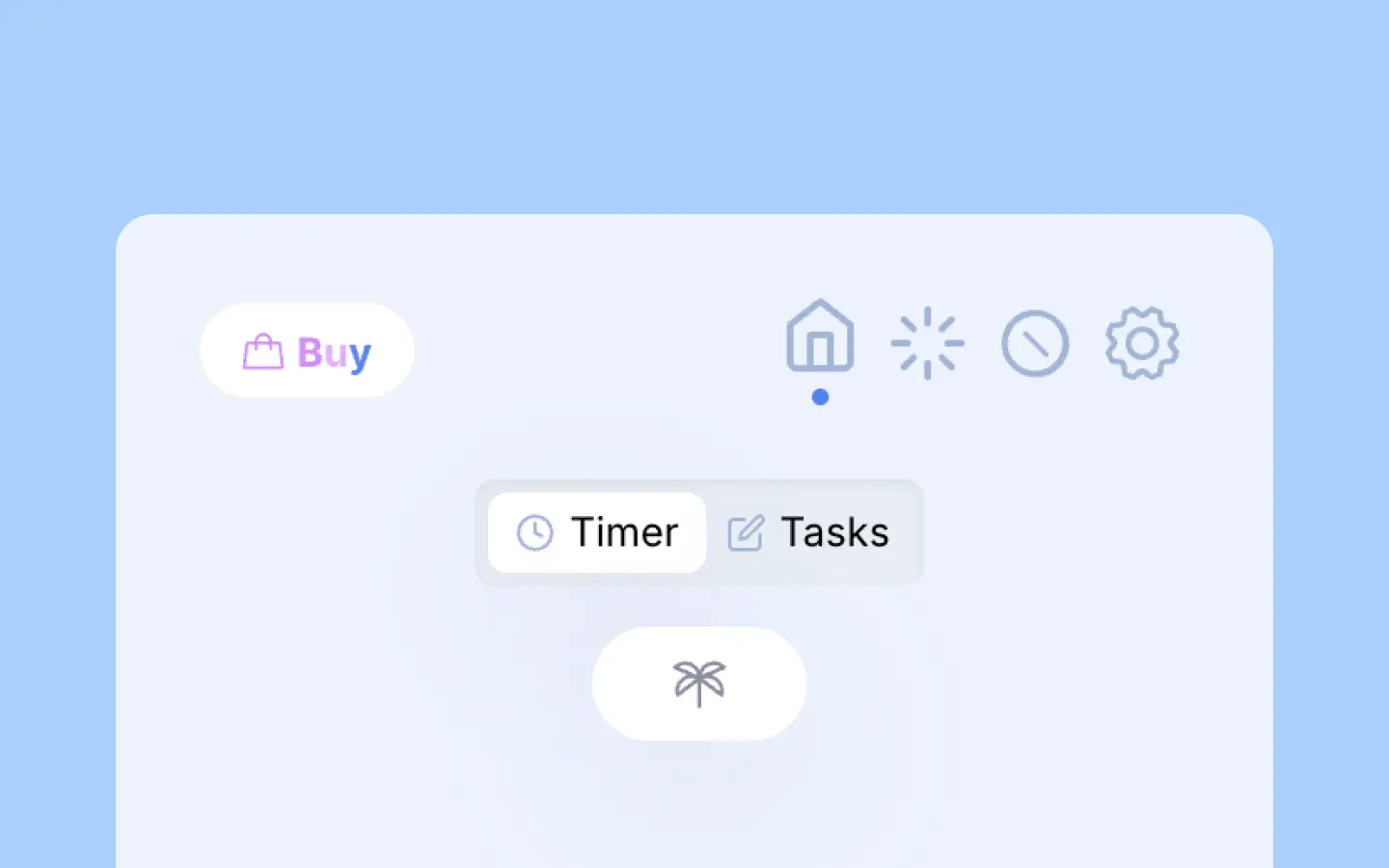
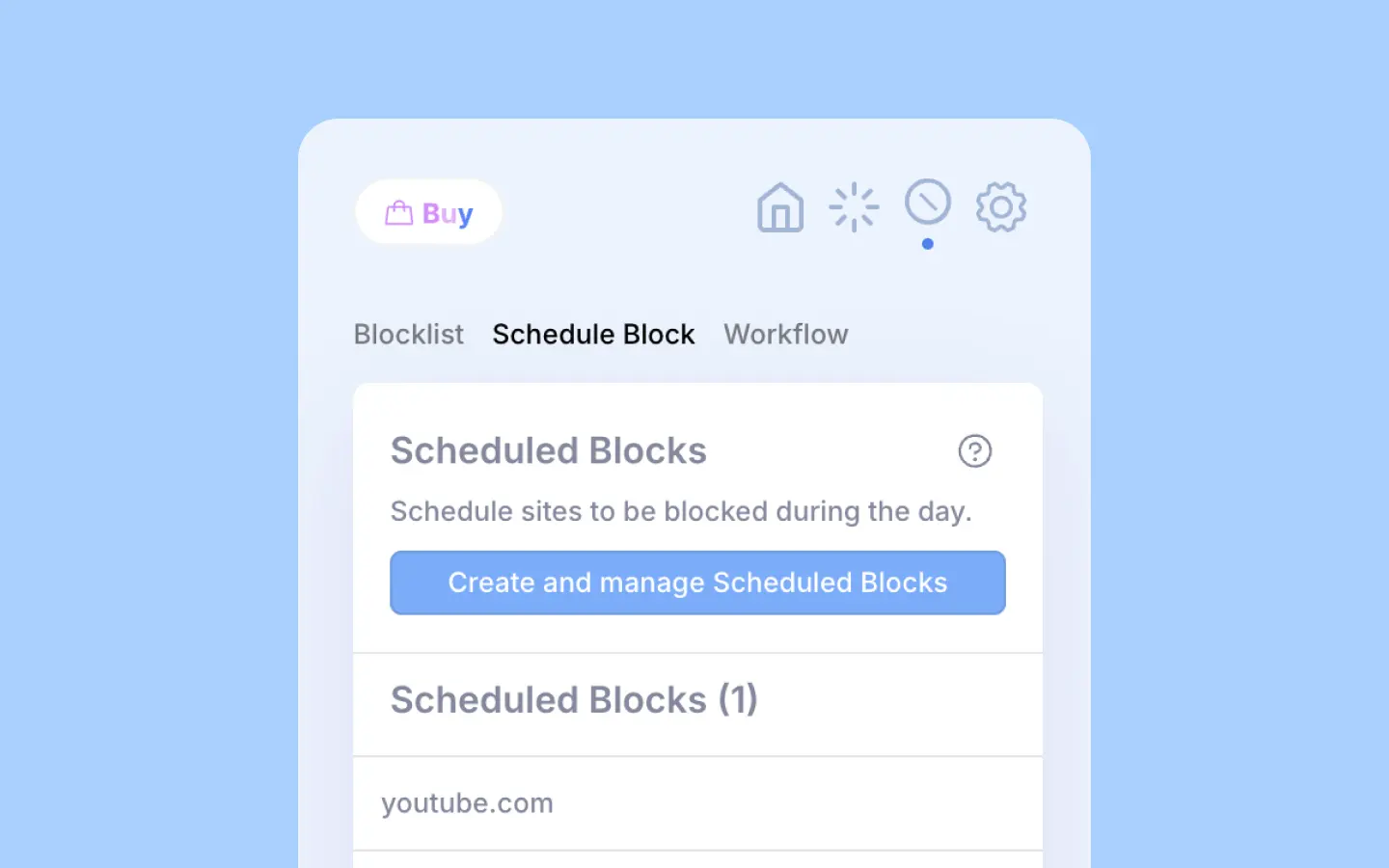
- Access the blocking section
- Click the block icon (the 3rd button in the navigation bar).
- Make sure the "Schedule Block" tab is selected.
- Click "Create and Manage" to go to the settings page.
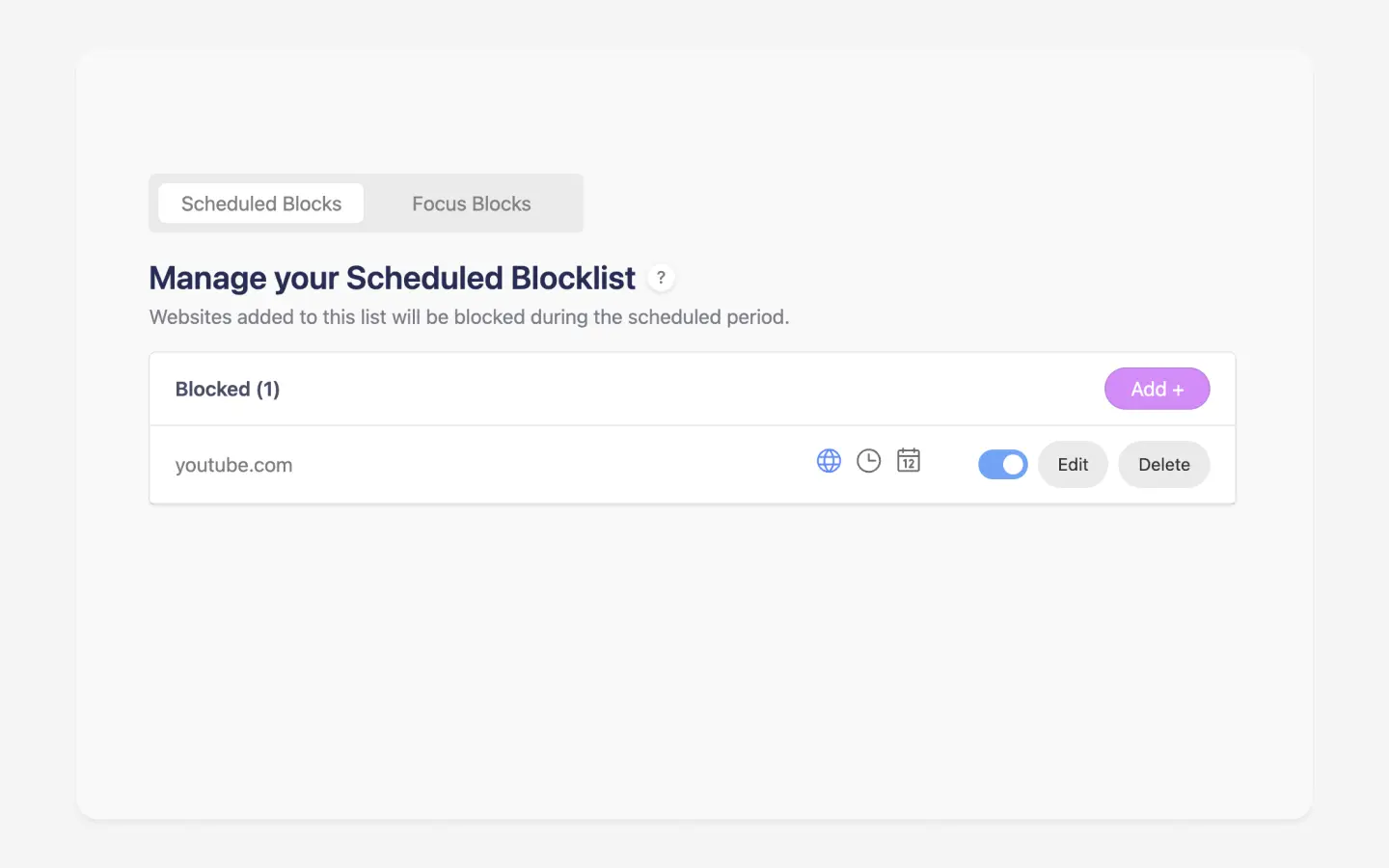
- Add a website
- On the Schedule Block page, click the "Add+" button.
- Enter a custom URL, or pick from the list of common websites.
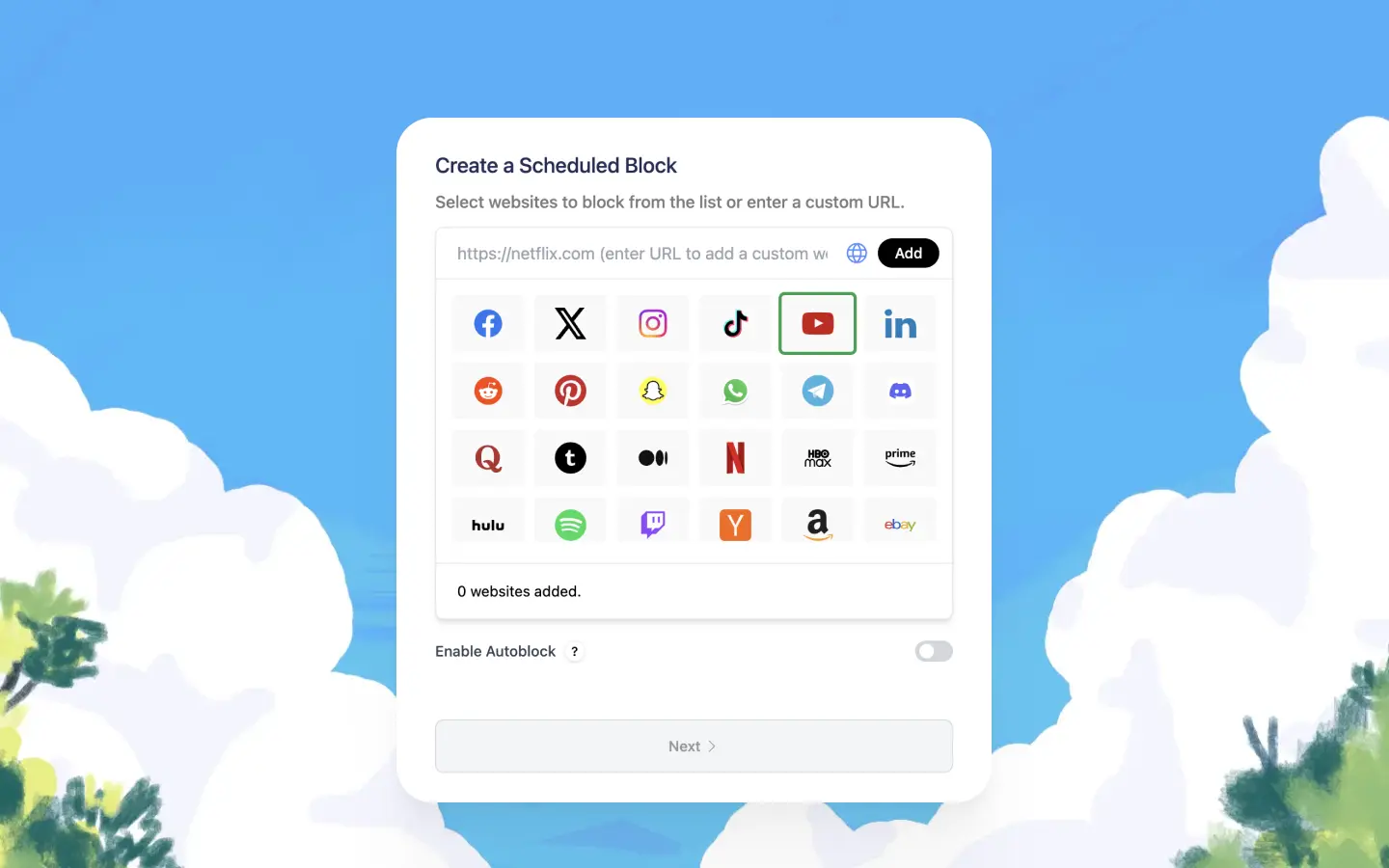
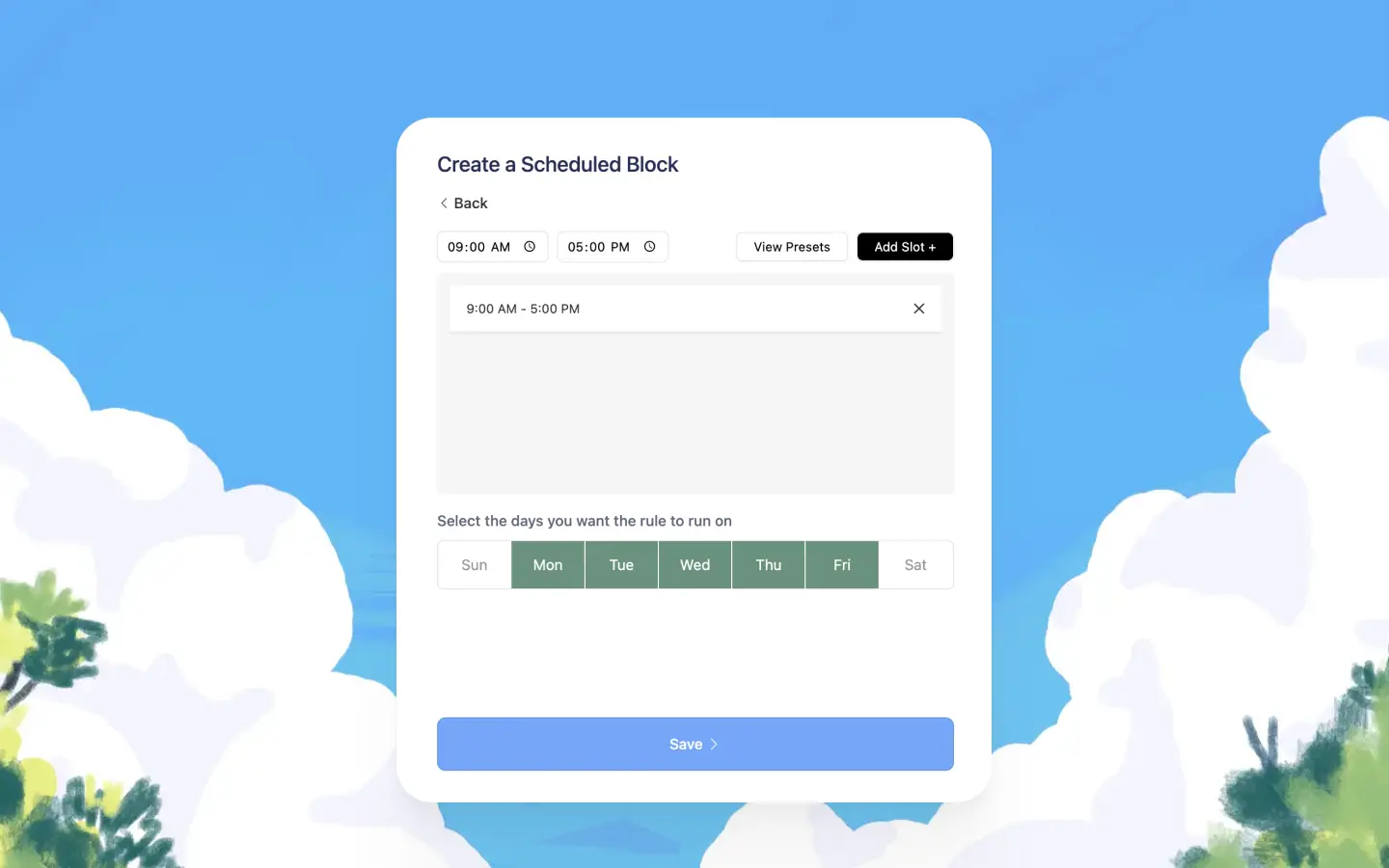
- Set up a schedule
- By default, websites are blocked from 10 AM to 3 PM, Monday–Friday.
- You can customize this by adding multiple start and end times.
- Click "Save" when you're done.
How to disable a scheduled block rule
On the Schedule Block page, find the website in the list and click its toggle switch to disable it.
You can also use the unblock temporarily feature.